Why I wanted a scroll animation website
You have seen those Apple-style product pages where scrolling "plays" a film: a dish assembles itself, a product rotates, a scene opens up. I am a product manager, not a developer, and I wanted that effect for a restaurant site. Here is the exact workflow I use with Claude Code and the EMBER TABLE Skill. It also works in Codex and Cursor.
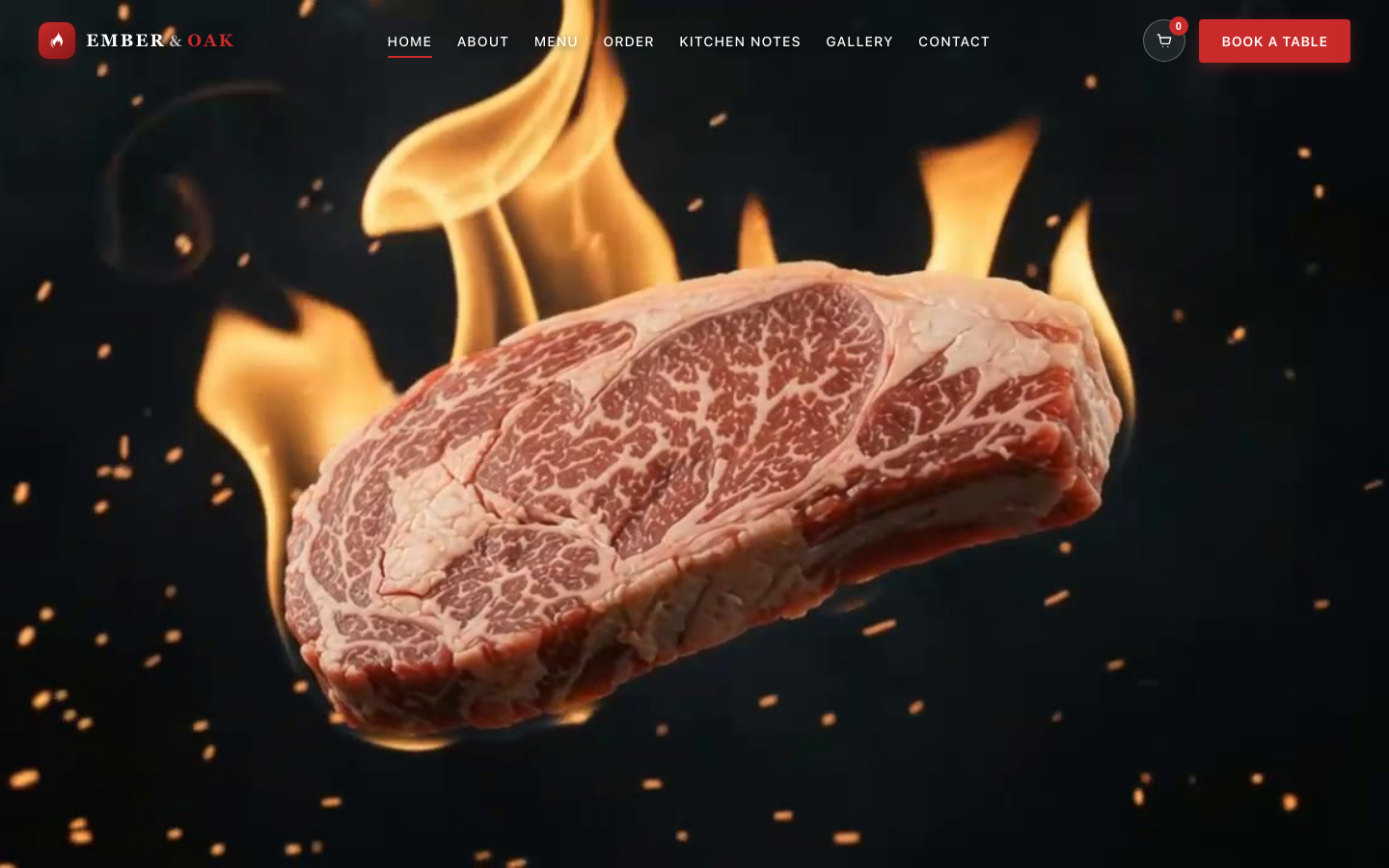
How a scroll-driven frame animation works (30-second version)
It is not a video. The page holds a sequence of still images (EMBER TABLE's demo pack has 192 frames) and draws one of them on a canvas depending on how far you have scrolled. Scroll down, the film plays forward; scroll up, it rewinds. Getting this smooth means preloading frames, mapping scroll position to a frame number, keeping the canvas sharp on retina screens, and giving phones a lighter version. That is the part that is hard to describe in a one-line prompt, and it is exactly what the Skill already spells out for the AI.
What you need
- Claude Code (or Codex / Cursor) installed and signed in
- An empty folder for the project
- The EMBER TABLE Skill from the Skill page (included in any plan, see pricing)
- Your restaurant name and a short story. You can start with the demo asset pack (192 animation frames + 15 photos) and swap in your own later
New to Skills? Read what a Skill is and how to use one first.
Step 1: Open the project folder in Claude Code
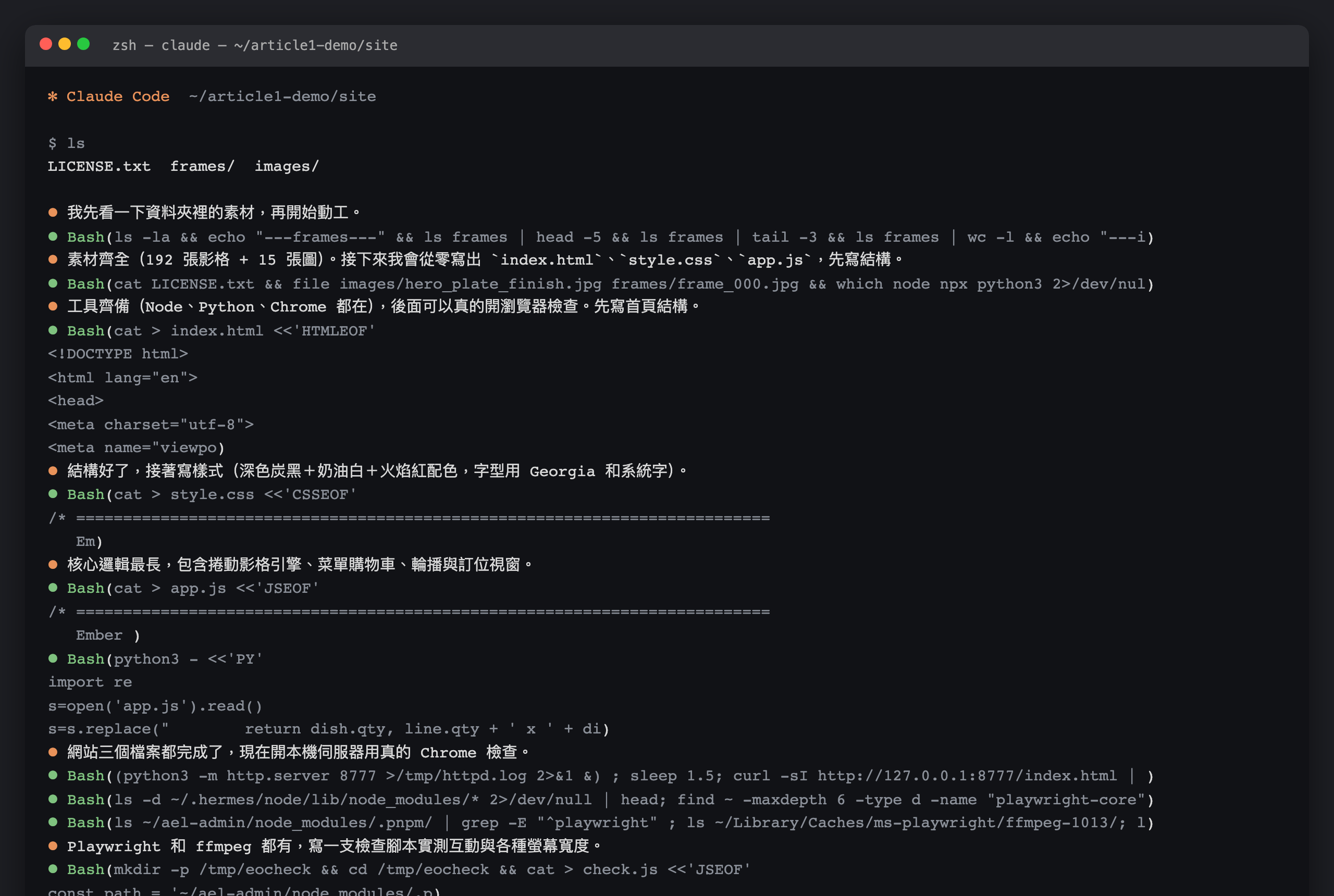
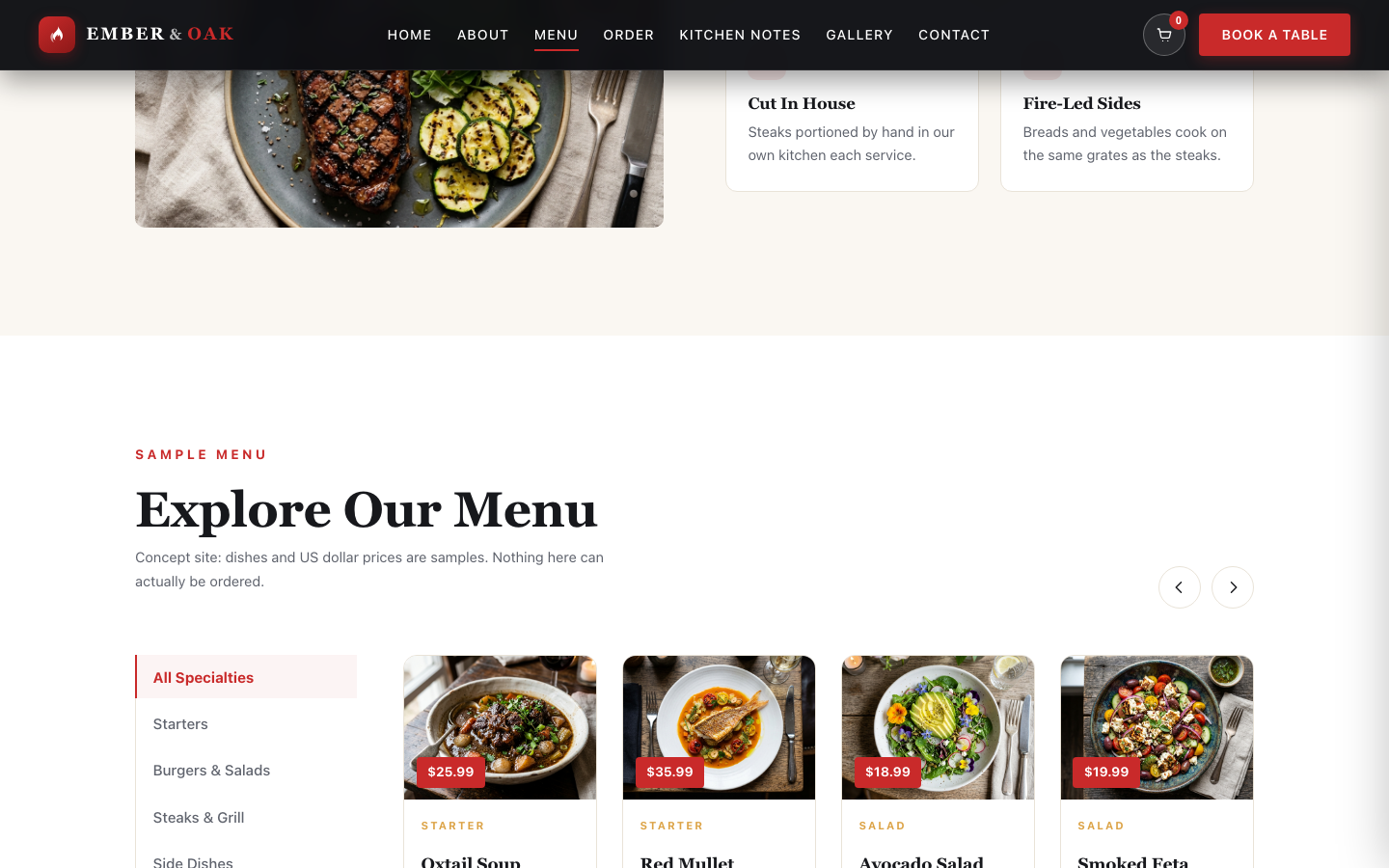
Create a folder such as ember-site, open a terminal there and start claude. Put the demo frames and photos in the folder (or an assets subfolder) so the AI can see them.
Step 2: Paste the Skill
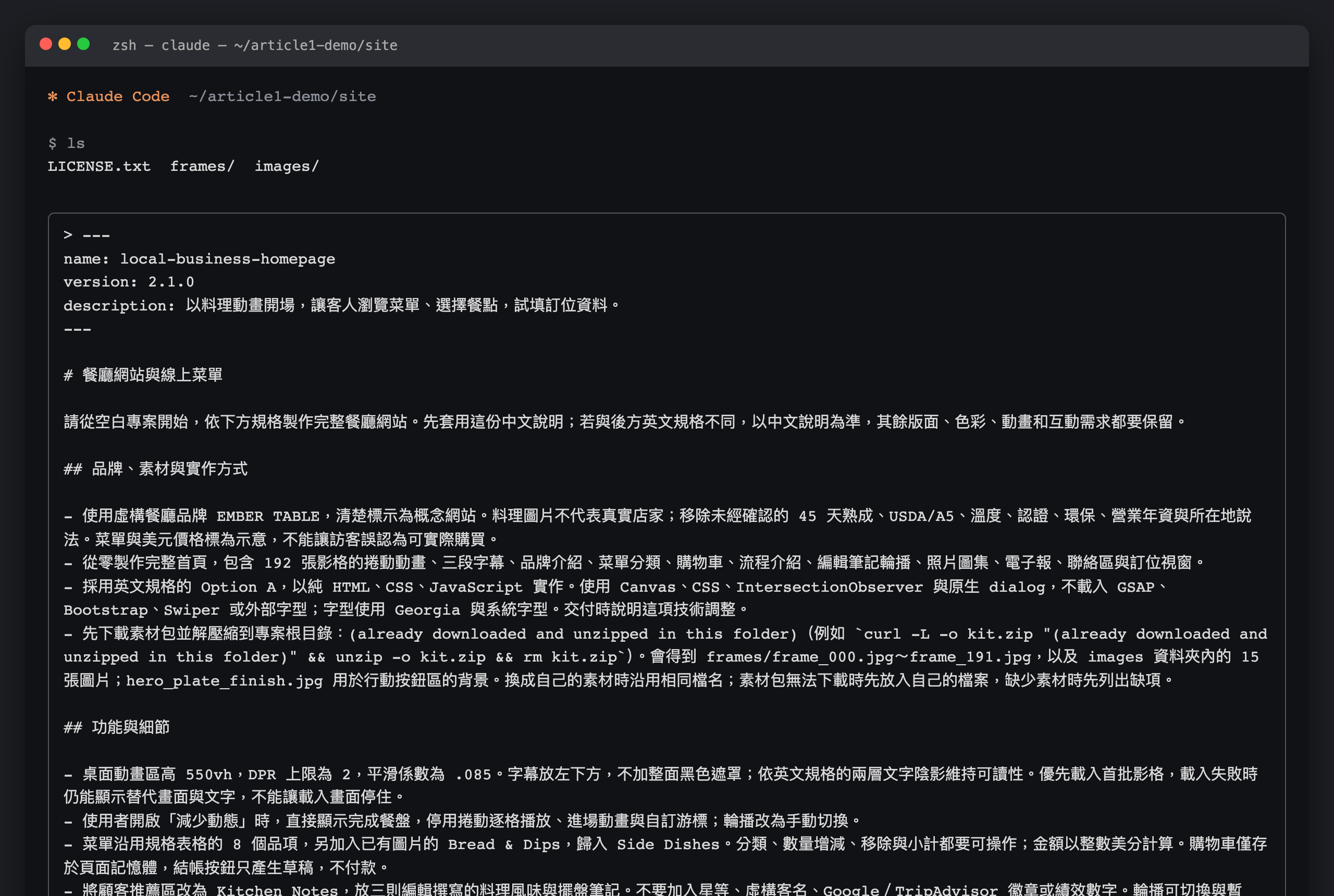
Copy the full EMBER TABLE Skill and paste it as your first message. You can also save it as SKILL.md in your skills folder and call it by name later. The Skill tells Claude what to build (opening animation, online menu, order builder, reservation form), what to ask you, and how to check the result.
Step 3: Answer its questions
Claude will ask for your brand details: restaurant name, story, where the frames and photos are. Answer in plain language. You do not need to know HTML, CSS or JavaScript; the output is a complete site in plain HTML, CSS and JavaScript.
Step 4: Open the result and scroll
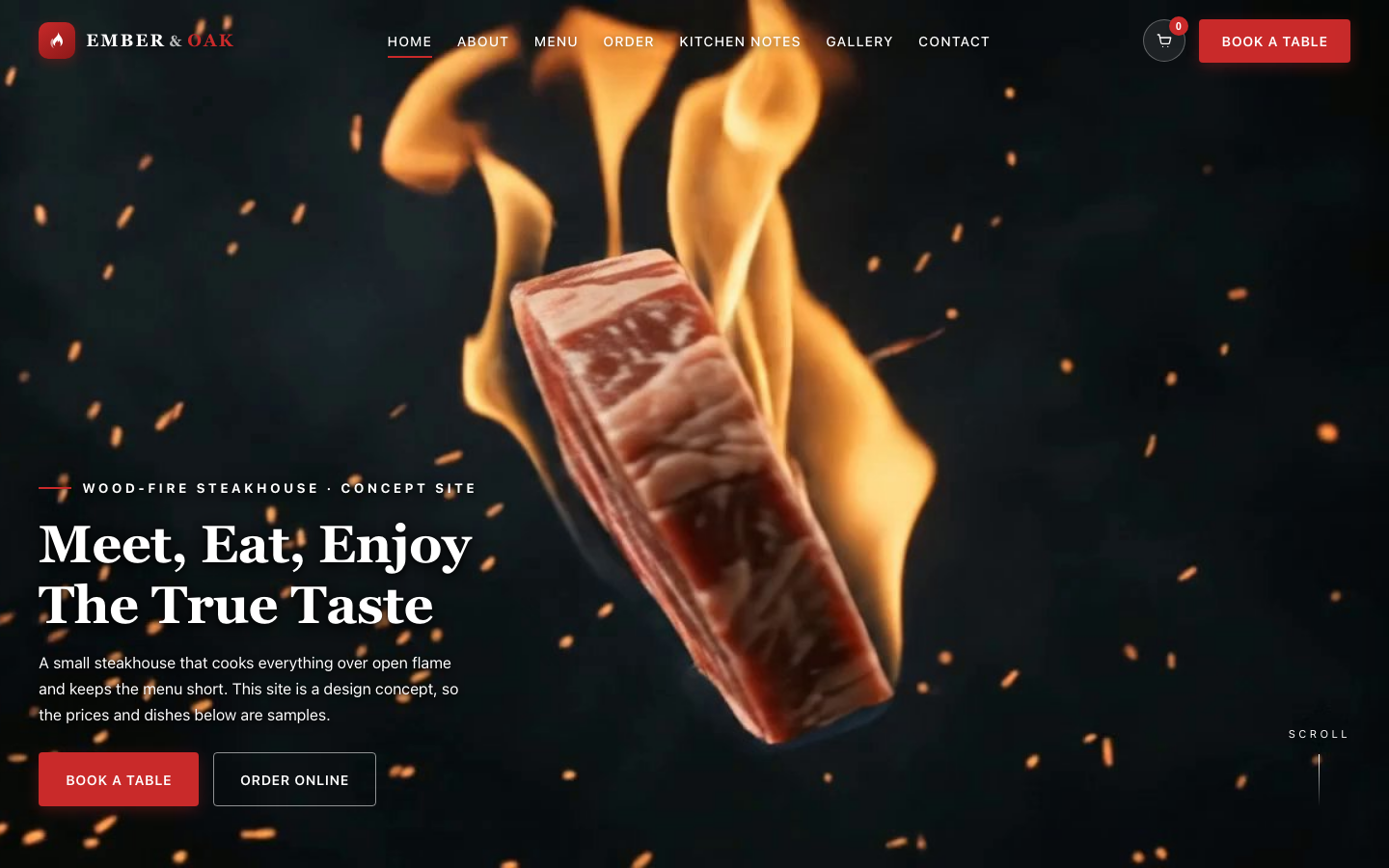
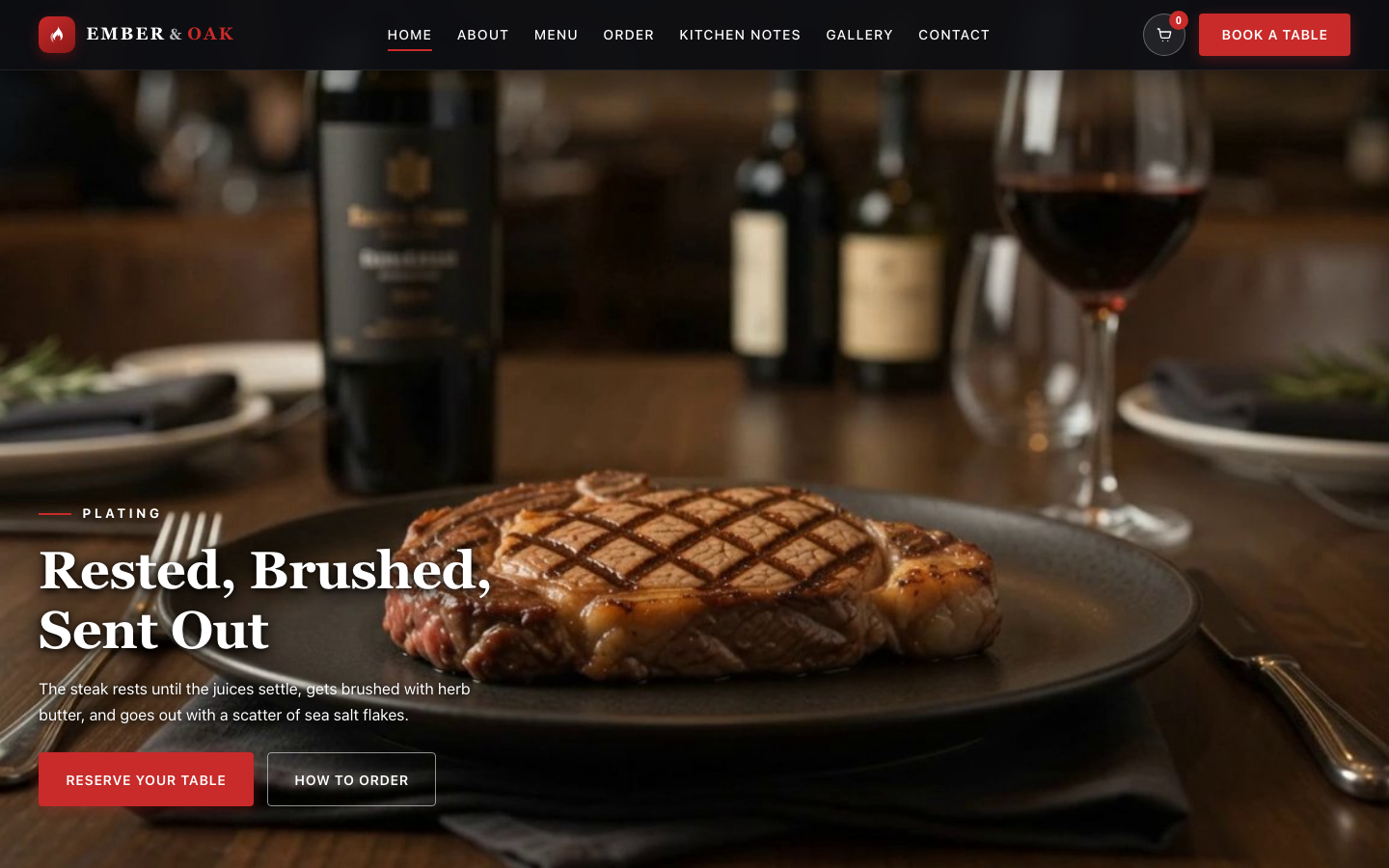
When Claude finishes, open index.html in your browser and scroll slowly through the hero. Check three things: the animation follows your scroll in both directions, it does not flicker, and the text over it is readable.
Step 5: Iterate in plain language
This is where most of the time goes, and it is normal. Example requests that work well:
- "The animation finishes too fast. Make the hero section scroll longer."
- "On my phone it feels heavy. Use fewer, smaller frames under 768px wide."
- "Show a single still frame if the visitor has reduced motion turned on."
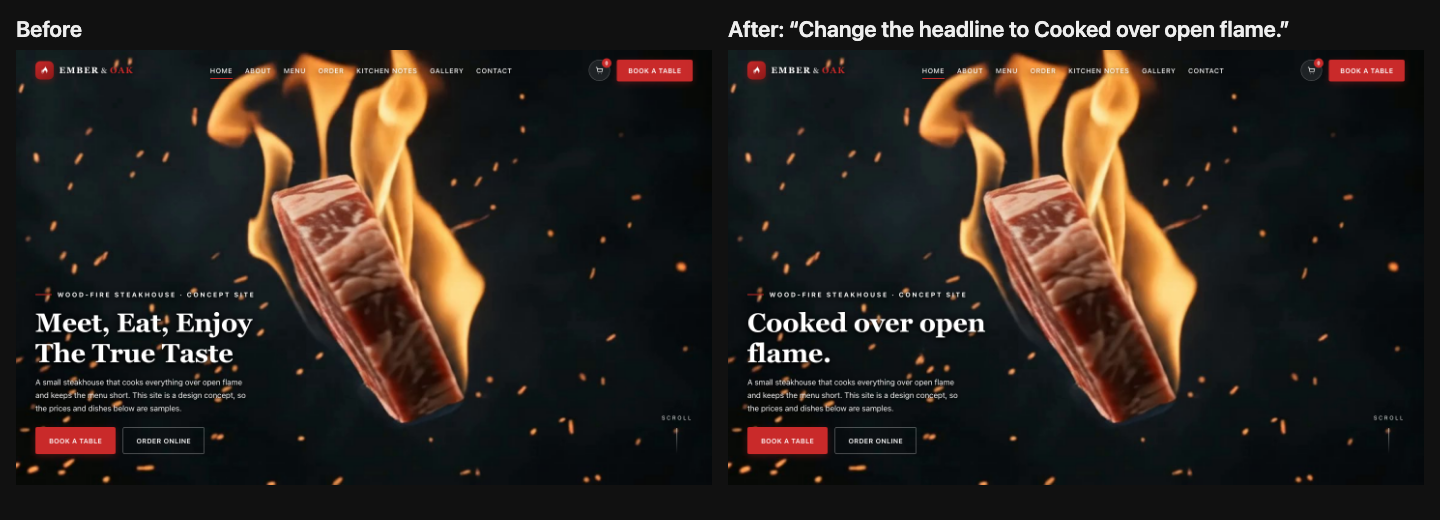
- "Change the headline to …, keep the font."
Describe what you see, not how to code it. If something breaks, paste the error from the browser or just say what looks wrong.
Step 6: Check mobile and desktop
The Skill's layouts are checked from 360 px phones to 1440 px desktops. Still, open your browser's device preview and try a phone width and a wide screen yourself before you publish.
Step 7: Swap in your own frames
To use your own animation, make a short clip (filmed or AI-generated), export it as numbered images (a free tool like ezgif's "video to images", or ask Claude to run FFmpeg for you), drop them in the frames folder and tell Claude how many there are. Keep the frame count and size reasonable: more frames mean smoother motion but a heavier page.
Want to try the workflow for free first?
The same paste-and-iterate workflow works with the free Skills in the free zone, such as WORLDVIEW SAAS. It has no frame animation, but it is a no-cost way to learn the loop before you unlock EMBER TABLE.
FAQ
Do I need to know how to code?
No. You paste the Skill, answer questions and describe changes in plain language. Knowing how to open a terminal and a browser is enough.
Does it work in Cursor or Codex, not just Claude Code?
Yes. Sketchry Skills are written for Claude Code, Codex and Cursor.
Is the scroll animation a video?
No. It is a sequence of still images drawn to a canvas based on scroll position, which is why it can play backwards smoothly.
Will it be slow on phones?
It can be if the frames are large. Ask the AI to serve fewer or smaller frames on small screens and a static image for reduced motion.
Can I use the site for a client?
What you make with a Sketchry Skill can be used in your own or your clients' commercial projects, with no attribution needed.
How much does it cost?
See pricing for the current plans. Several Skills are free; try one in the free zone.